📖 How to Set Donation Voice and Text-to-Speech Volume
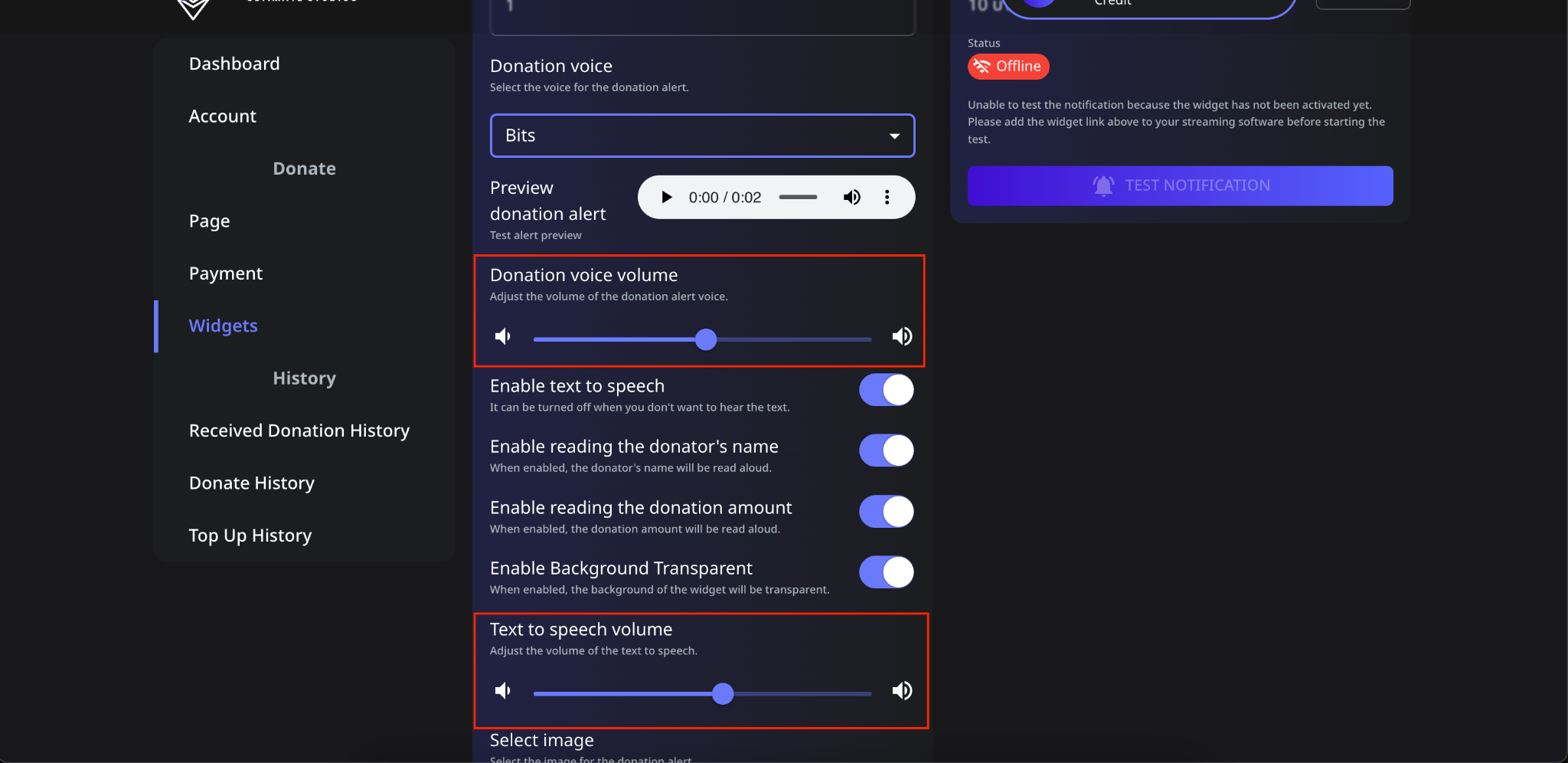
In Spectrum Live, you can customize the volume for two different audio notifications:
- Donation Voice Volume: The alert sound that plays when a donation is received.
- Text-to-Speech (TTS) Volume: The voice that reads out the donor's name and amount.
Follow these steps to adjust these settings:
📌 Step 1: Navigate to the Volume Settings
- Log in to your Spectrum Live account.
- Click on Widgets in the sidebar.
- Scroll down to find the Donation Voice Volume and Text-to-Speech Volume settings.
📌 Step 2: Adjust the Donation Voice Volume
- Locate the Donation Voice Volume slider.
- Drag the slider left to decrease the volume or right to increase it.
- This controls the alert sound that plays when a donation is received.
- Available Donation Voice Types:
- Bits
- Coin
- Multi Coin
- Alert
- Choose the donation voice type that best fits your stream.
- Click Save to apply the changes.
📌 Step 3: Adjust the Text-to-Speech (TTS) Volume
- Scroll down to the Text-to-Speech Volume section.
- Drag the slider left to lower the TTS volume or right to increase it.
- This controls the voice that reads the donor's name and donation amount.
- Click Save to apply the changes.
🔄 Test Your Settings
- Once adjustments are made, preview the changes:
- Click the Test Notification button.
- Listen to ensure the Donation Voice and TTS Volume are at the desired levels.
- If necessary, fine-tune the sliders to get the perfect balance.
⚠️ Troubleshooting
- Too loud or too soft? Adjust the sliders gradually to match your stream’s audio balance.
- Want to disable text-to-speech? Toggle Enable Text-to-Speech to OFF.
Now, your donation alerts will sound just right for your stream! 🚀