📖 How to Copy the Widget Link for Your Streaming App
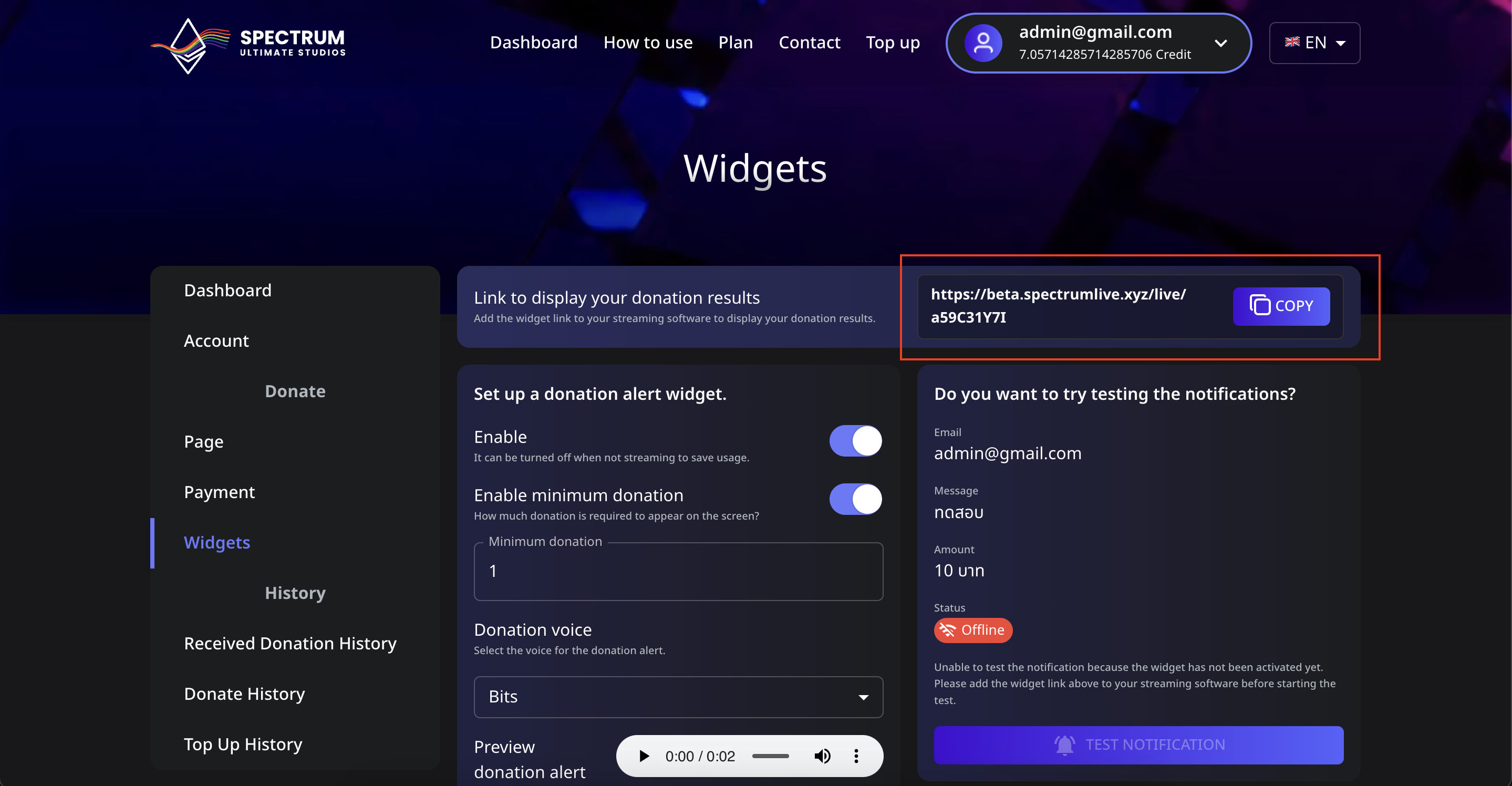
Widgets in Spectrum Live allow streamers to display donation alerts during live broadcasts. This guide will show you how to copy your widget link and add it to streaming software like OBS Studio or Streamlabs.
📌 Step 1: Find Your Widget Link
- Log in to your Spectrum Live account.
- Navigate to the Widgets menu from the sidebar.
- At the top of the page, you’ll see a section labeled "Link to display your donation results."
- Click the COPY button to copy your unique widget URL.
📌 Add the Widget to OBS Studio
- Open OBS Studio.
- In the Sources panel, click the ➕ Add Source button.
- Select Browser and give it a name (e.g., "Spectrum Live Donation Widget").
- Paste the copied URL into the URL field.
- Set the width to
800and height to600(recommended settings, adjust as needed). - Click OK to save.
✅ Your donation widget is now integrated into OBS!
📌 Add the Widget to Streamlabs
- Open Streamlabs and go to the Editor tab.
- Click the ➕ Add Source button and select Browser Source.
- Paste the copied widget link in the URL field.
- Adjust the width and height if necessary.
- Click Done to save.
🎉 Now, your donation widget will appear during live streams!
🔄 Test Your Widget
To ensure everything works:
- Go back to the Widgets page on Spectrum Live.
- Look for the "Test Notification" button.
- If your widget is correctly set up, clicking the button will trigger a test alert on your stream.
⚠️ Troubleshooting Tip
If the status says "Offline", make sure you've added the widget URL to your streaming software and activated it.
💡 Next Steps
Now that your widget is added, you can:
- Customize donation alerts (colors, sounds, animations)
- Set minimum donation amounts for alerts
- **Enable text-to-speech (TTS) for donations)
Explore the Widgets menu to personalize your stream experience!