🎨 How to Customize Your Donation Page
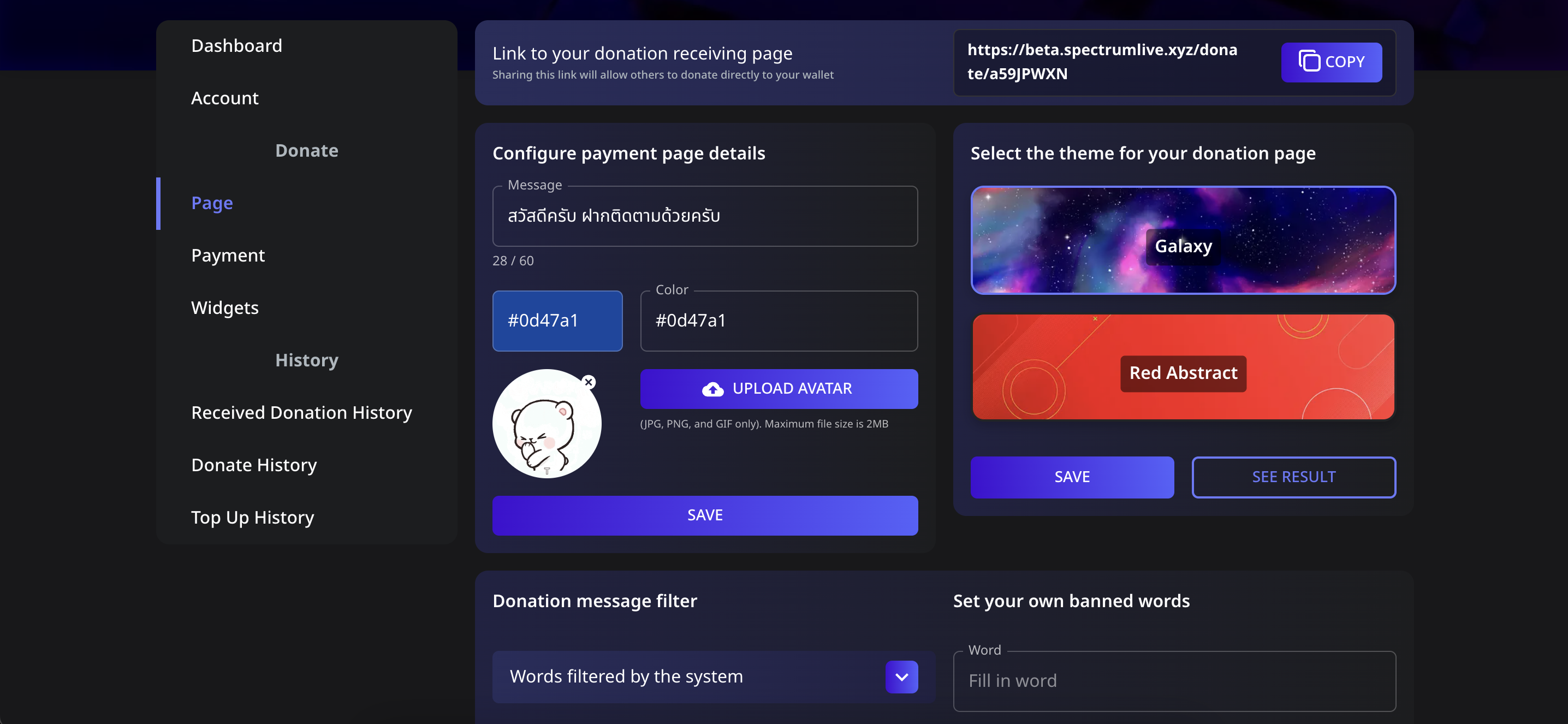
In Spectrum Live, streamers can personalize their donation page to match their branding and preferences. This includes setting a cover image, avatar, theme, and filtering inappropriate words from donation messages.
📌 Step 1: Access the Donation Page Settings
- Log in to your Spectrum Live account.
- Click on Page in the sidebar.
- You will see customization options, including:
- Message (A short text message for donors)
- Page Colors (Customize the color theme)
- Upload Avatar (Your profile image for the donation page)
- Select Theme (Choose from available themes like Galaxy or Red Abstract)
📌 Step 2: Customize Your Donation Page
1️⃣ Set a Welcome Message
- Locate the Message box.
- Enter a short message to display on the donation page (e.g., “Thank you for your support!”).
2️⃣ Set a Page Color
- Click on the Color Picker to choose a color that matches your brand.
- The selected color will apply to your donation page’s background.
3️⃣ Upload an Avatar
- Click UPLOAD AVATAR.
- Select a JPG, PNG, or GIF file (Max size: 2MB).
- The avatar will appear on your donation page.
4️⃣ Choose a Theme
- Select a theme from the available options (e.g., Galaxy or Red Abstract).
- Click SAVE to apply the changes.
📌 Step 3: Set Up a Donation Message Filter
To prevent inappropriate or unwanted messages from appearing in donation alerts, you can enable the Donation Message Filter.
1️⃣ Use System-Filtered Words
- Click on the Words filtered by the system dropdown.
- This will automatically block commonly banned words from appearing in donation messages.
2️⃣ Add Custom Banned Words
- In the Set your own banned words section, enter a word you want to block.
- Click ADD NEW WORD.
- Any donation message containing the banned word will not be displayed or read aloud.
✅ Save and Preview Your Donation Page
- Click SAVE to apply all changes.
- Click SEE RESULT to preview how your donation page looks to donors.
🎉 Now your donation page is fully customized and ready to receive donations! 🚀