💳 How to Set Up Payment Methods
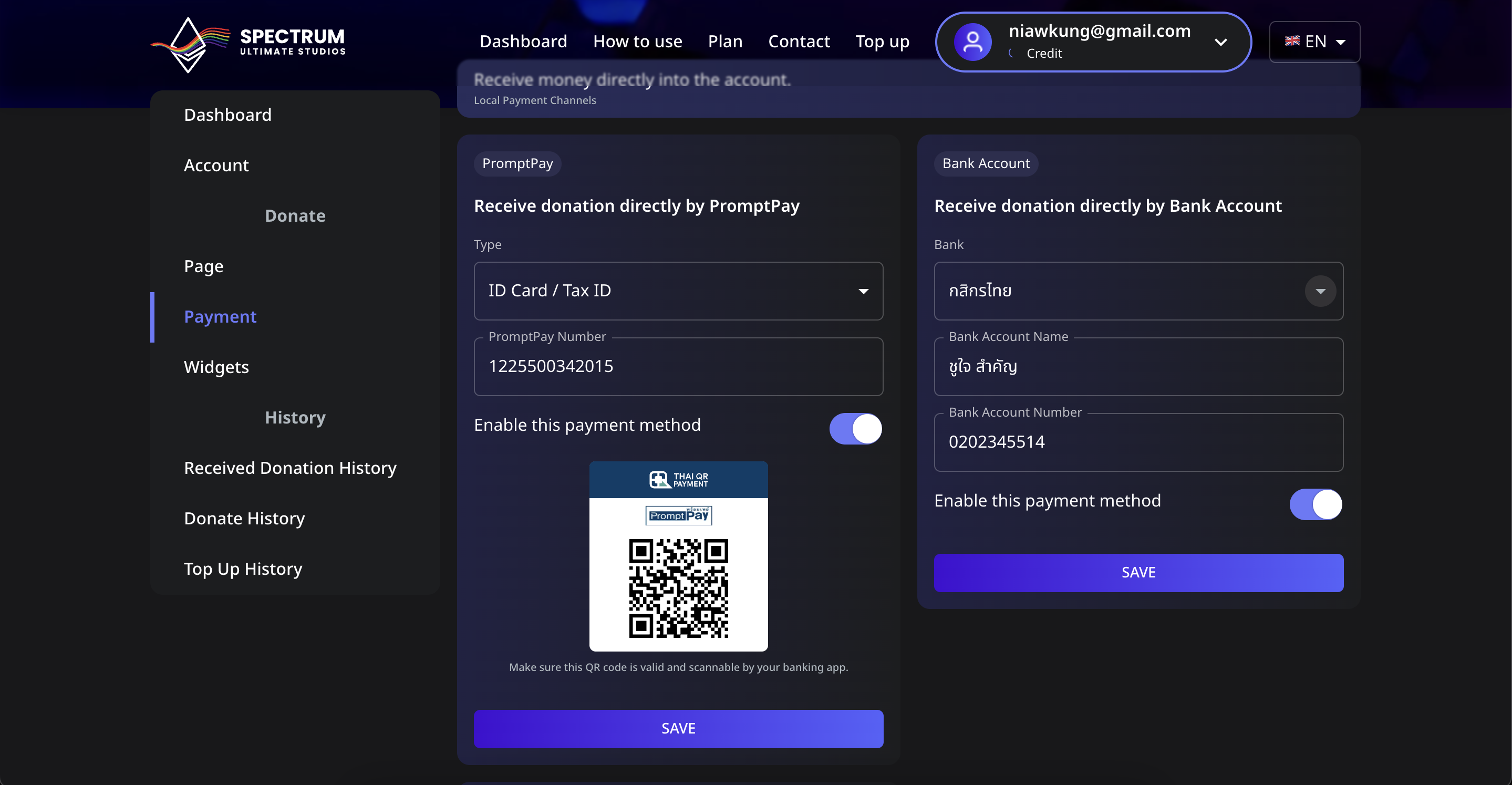
In Spectrum Live, streamers can receive donations directly via different payment methods. Once a payment method is set up and enabled, it will be displayed on the donation page for donors to use.
📌 Available Payment Methods
- PromptPay (Using Mobile Number or ID Card)
- Bank Account (Supported banks include ไทยพาณิชย์, กสิกรไทย, and more)
- TrueMoney (Using a phone number)
📌 Step 1: Navigate to the Payment Settings
- Log in to your Spectrum Live account.
- Click on Payment in the sidebar.
- You will see different sections for PromptPay, Bank Account, and TrueMoney.
📌 Step 2: Set Up a Payment Method
1️⃣ Setting Up PromptPay
- In the PromptPay section, select the type of PromptPay ID (Mobile Number or ID Card/Tax ID).
- Enter the corresponding PromptPay Number.
- Toggle the Enable this payment method switch to ON.
- Click the SAVE button.
- A QR Code will be generated for donors to scan and send payments.
2️⃣ Setting Up a Bank Account
- In the Bank Account section, select your Bank Name (e.g., ไทยพาณิชย์, กสิกรไทย).
- Enter your Bank Account Name (e.g., your full name).
- Enter your Bank Account Number.
- Toggle the Enable this payment method switch to ON.
- Click the SAVE button.
3️⃣ Setting Up TrueMoney
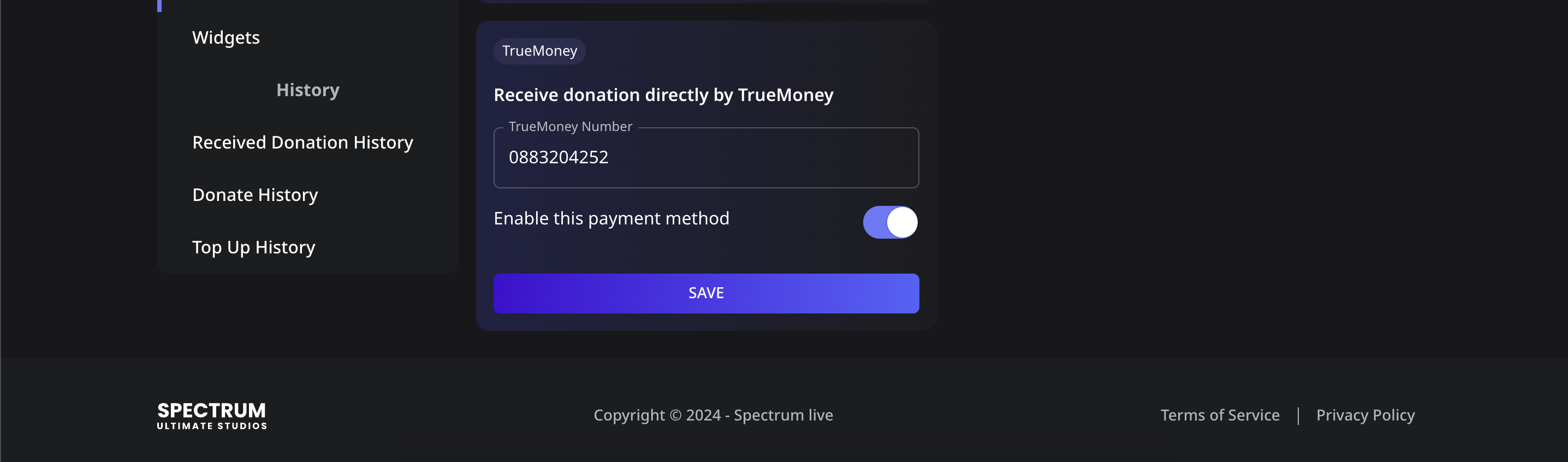
- In the TrueMoney section, enter your TrueMoney Phone Number.
- Toggle the Enable this payment method switch to ON.
- Click the SAVE button.
📌 Step 3: Verify Your Payment Methods
- Once a payment method is enabled, it will be visible on your donation page.
- Donors will see the available options and use them to send donations.
- If you wish to disable a method, simply toggle the Enable this payment method switch to OFF and save the changes.
⚠️ Troubleshooting
- Payment method not showing on the donation page?
- Ensure the method is enabled.
- Refresh the donation page to reflect updates.
- Entered incorrect details?
- Edit the payment details and click SAVE again.
Now, your donation payment methods are set up and ready for donors to use! 🚀